
Business Integration Solutions documentation
About: XMLTOJSONTRANSLATOR activity
In Business Integration Solutions, use the XMLTOJSONTRANSLATOR activity to translate an XML document into a JSON document.
Usage
Use this activity to translate an XML document into a JSON document.
Concept
Internal processing in Microsoft Dynamics BC happens on documents in XML format. If your publishing partner requires data in JSON format, use the XML to JSON Translator activity to translate the document from XML into JSON.
To use this activity, define an internal or external document on which the incoming data translates.
Setup

Setup for this activity splits into three sections: General Setup, Policies, and Node Policies.
General Setup
| Field | Description |
|---|---|
| Source Document Type | The document type of the document representing the XML to translate. |
| Source Document No | The document number of the document representing the XML to translate. |
| Json Translator | The translator to use. Translators define in enum BISJsonTranslator. Currently BIS and BIS Legacy exist. BIS represents the latest version and is the default for new activities of this type. |
| Text Encoding | The encoding applied to the resulting document. Default: UTF-8. |
The
BIS Legacytranslator is the old translator. It does not use all the policies and options shown below. Switch to theBIStranslator.
Policies
Policies represent settings for the translation.

The following policies are available for XML to JSON: ParseDataTypes, ParseNull, NullValue, AttributeBlockName, AttributePrefix, StripLevels, TextAlwaysAsProperty, and TextNodeName.
ParseDataTypes
Accepts True or False.
Determines whether to convert data types into primitive JSON types. To determine whether a field translates into a primitive JSON type, the field data type in the document must not have type text.
Example:
Input:
<Item><No>1000</No><UnitPrice>99.55</UnitPrice><AllowInvoiceDisc>true</AllowInvoiceDisc></Item>
ParseDataTypes True: UnitPrice outputs as 99.55 (number), AllowInvoiceDisc as true (boolean).
ParseDataTypes False: all values output as strings; "99.55", "true".
ParseNull and NullValue
ParseNull accepts True or False. NullValue accepts a text value; it is ignored if ParseNull is False.
Determines how an empty element value translates to JSON.
Example:
Input: <Item><No>1000</No><CustomField></CustomField></Item>
ParseNull False → "CustomField": {}
ParseNull True, NullValue '' → "CustomField": null
ParseNull True, NullValue -NULL- → "CustomField": "-NULL-"
AttributeBlockName and AttributePrefix
AttributeBlockName and AttributePrefix accept a text value or an empty string.
If AttributeBlockName has a value, an additional object adds to the parent object to list the attributes.
If AttributePrefix has a value, attribute names add with that prefix.
Example:
Input: <Item No="1000"><Description>Bicycle</Description></Item>
AttributeBlockName '', AttributePrefix _ → "_No": "1000" alongside "Description"
AttributeBlockName Attributes, AttributePrefix _ → attributes nest under "Attributes": {"_No": "1000"}
AttributeBlockName Attributes, AttributePrefix '' → "Attributes": {"No": "1000"}
StripLevels
Accepts a number.
Determines the starting point of the object. Useful when the XML document needs stripping of opening elements.
Example:
Input:
<document><Item><No>1000</No><Description>Bicycle</Description></Item></document>
StripLevels 0 → includes "document" wrapper
StripLevels 1 → starts at "Item" level
StripLevels 2 → starts at field level ("No", "Description")
Levels cannot strip further if the element contains more than one child element.
You can also get an array as the root item in JSON output. With two <Item> nodes and StripLevels 2, the output is a JSON array of item objects.
TextAlwaysAsProperty and TextNodeName
TextAlwaysAsProperty accepts True or False. TextNodeName accepts a text string and must have a value.
If TextAlwaysAsProperty is True, a text node wraps with a field named by TextNodeName. Mixed nodes (text node alongside other nodes) always wrap with the field specified in TextNodeName.
Example:
TextAlwaysAsProperty False → "No": "1000" (plain string)
TextAlwaysAsProperty True, TextNodeName TEXT → "No": {"TEXT": "1000"}
Node Policies
Node policies tie to specific nodes in the document. Only block nodes can have policies at this time.
TreatAsArray
Ensures that a JSON array outputs for a specific node, even if there is only one item.
Example:
Input: <document><Item><No>1000</No></Item></document>
TreatAsArray unchecked → "Item": {"No": "1000"} (object)
TreatAsArray checked → "Item": [{"No": "1000"}] (array)
WrapArray
Allows unwrapping of a list for a simpler JSON structure. Only applies when TreatAsArray is enabled for the node.
Example with two <Comment> children:
WrapArray checked → "Comments": {"Comment": ["Comment1","Comment2"]}
WrapArray unchecked → "Comments": ["Comment1","Comment2"]
Promoted Node
The XMLTOJSONTRANSLATOR supports promoting a node's value as a JSON object header. This lets JSON files have object keys that are not valid XML. Set this property at the linked document level; only available for non-block nodes. Only one promoted line is supported per document block.
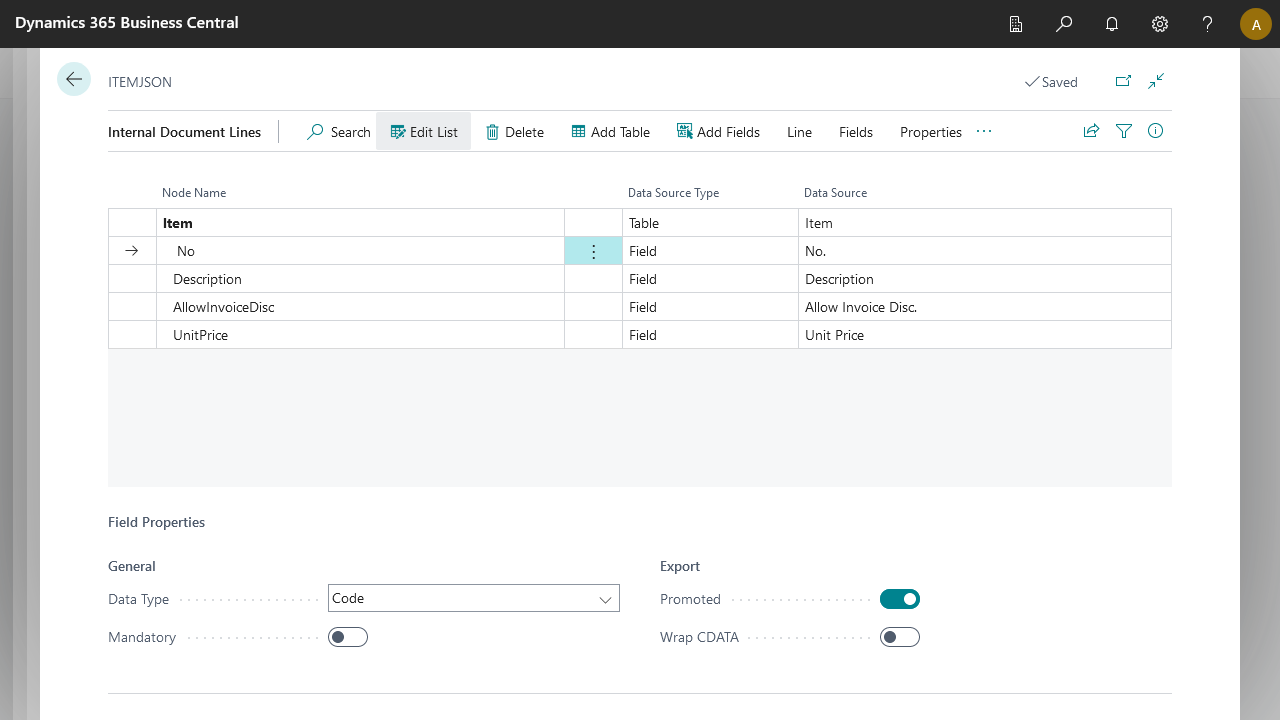
The behavior depends on the node policies set at the block level on the translator:
Promoted on Item/No, TreatAsArray and WrapArray unchecked → the value of No becomes the JSON object key, and No removes from the object body.
Promoted on Item/No, TreatAsArray checked, WrapArray unchecked → the array contains objects keyed by the No value.
Promoted on Item/No, TreatAsArray and WrapArray checked → similar to above but wrapped.
No property checked → standard output with all fields including No as normal properties.