
Anywhere Mobility Studio Documentation
Import product
Create a backup before installing Anywhere Mobility Studio for Business Central.
Anywhere Mobility Studio objects do not overlap standard Dynamics Business Central objects. In case of an upgrade, objects with customisations may be present in the database.
To import Anywhere Mobility Studio into Microsoft Dynamics Business Central:
Import the object files corresponding to your NAV version into NAV, according to the TI-NAV Installation Instructions document.
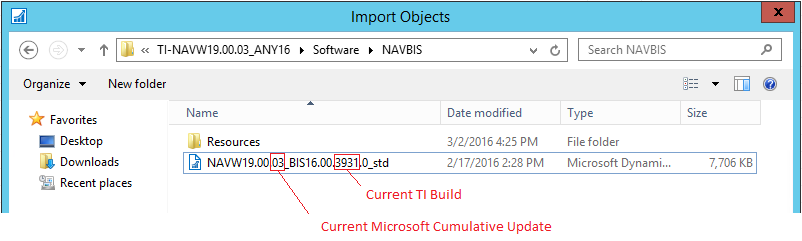
The first object file is located in the NAVBIS folder:
- NAVW110.00.XX_BIS17.00.XXXX.0_std
The second object file is located in the NAVANY folder:
- NAVW110.00.XX_ANY17.00.XXXX.0_std
In the Development Environment, filter all objects on Version List: [(<>*NAV*|*DAW*|*BIS*)&<>''] (without the square brackets)
Compile all objects and check the compilation results.
Reopen the Microsoft Dynamics Business Central client and check that the Navigation Pane contains a NAV Anywhere department.