Business Integration Solutions documentation
About: Record Change Event
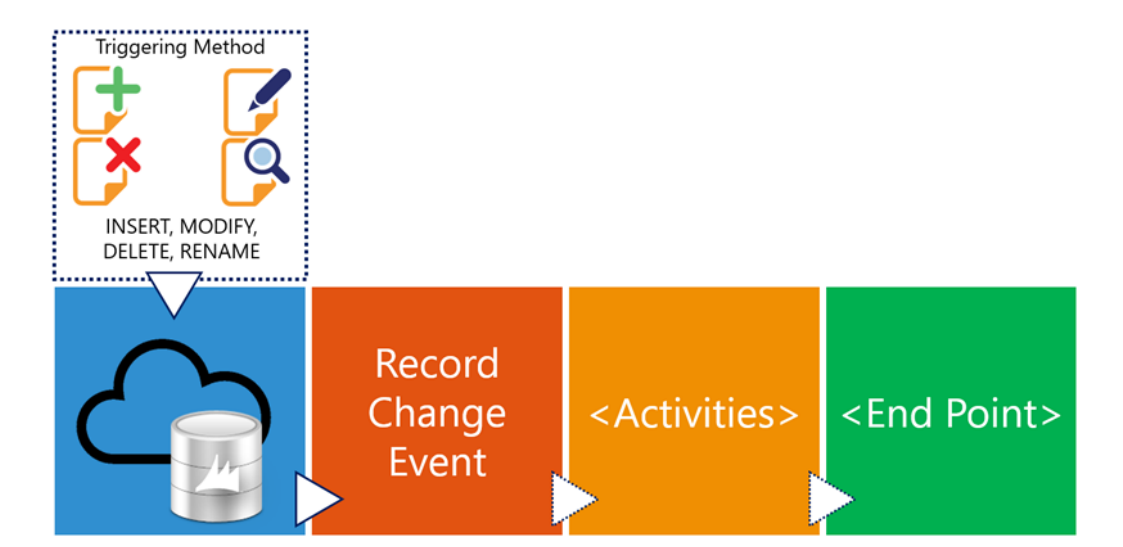
In Business Integration Solutions, the Record Change Event triggers a pipeline based on changes in the Microsoft Dynamics BC database.
Usage
Use this event to trigger an export based on record changes in Microsoft Dynamics BC. You can configure a Record Change Event for a table by:
- Defining an internal document
- Providing table and field filters
- Specifying the logging mechanism for record changes, such as insert, modify, delete, or rename
Use the job queue to process the Record Change Event automatically. On the Job Queue Entry card, you can define the recurrence and interval of the job queue.
To determine the type of change (insert, modify, delete, or rename), the NAVRecordChangeType property of the message at the receiving end is updated with relevant information. See Determine Transaction Type for more information.
Concept
When you insert, modify, delete, or rename a record in Microsoft Dynamics BC, the Record Change Event generates a record set. All relevant record changes are captured and stored in a change log table (N108 Record Set Member). This record set is the input for the first activity in the pipeline, most likely the XML Generator activity.
Details
Each record change event enables the change log to track changes based on the internal document. For example, if you change a field on the Item table and this field is monitored in more than one internal document on several record change events, the system creates a new entry in the change log for each record change event (connection).
How to: Setup the Record Change Event
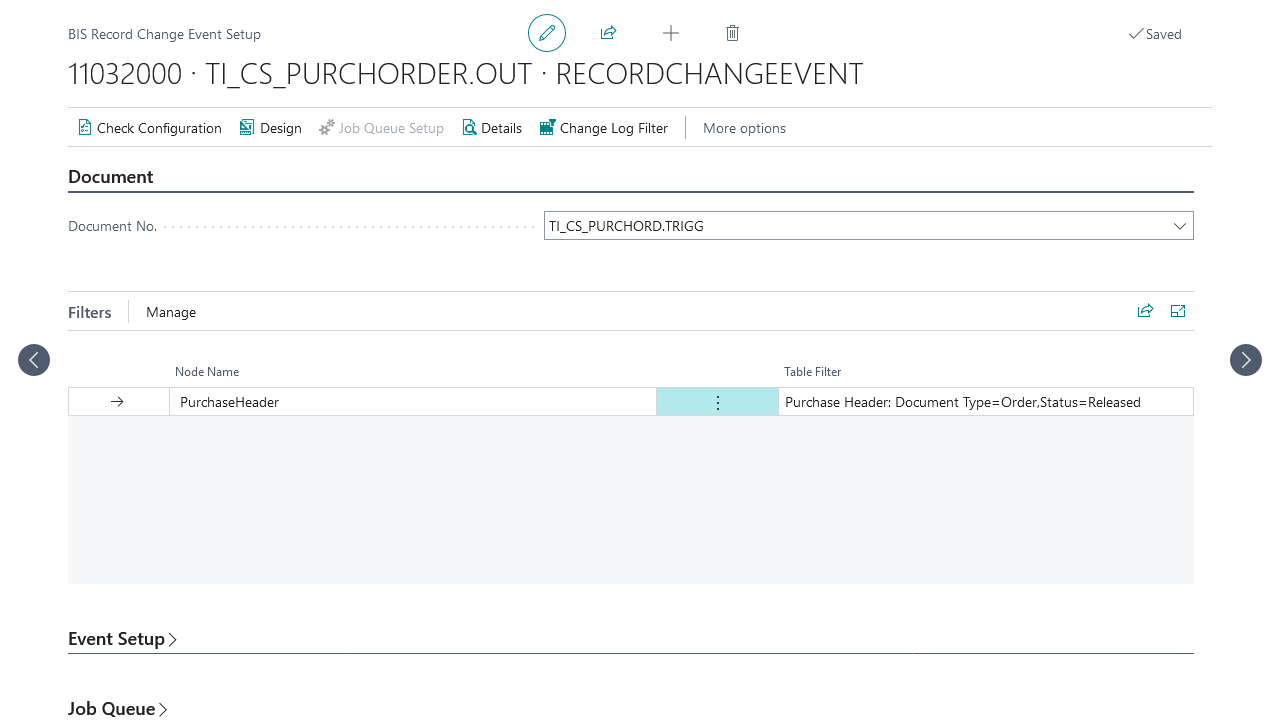
Document
An internal document definition describes which tables and/or fields must trigger.

Using several tables triggers on each table individually.
Filters
You can set filters for specific fields on each table. This is restricted to constant values. Note that although filters apply, the change log functionality triggers on every record change requested for monitoring. The filters determine which changes are inserted into the Record Set/Member table.
Event setup
The event setup lets you determine which triggers the change log must monitor:
Insert: All new entries in the table are monitored and stored as a change log.
Modify: All fields included in the internal document trigger for this type and result in a change log entry. If a table is included but no fields are listed, all fields are monitored. Fields that are part of the primary key are not monitored in this trigger.
Include XRec: Consider the previous record state when the current record does not match the filters set on the table.
Before the April 2024 release, XRec monitoring was enabled by default. Going forward, new configurations have this setting disabled by default.
Delete: All deleted entries in the table are monitored and stored as a change log.
Rename: All changes to fields that belong to the primary key result in a rename. These are monitored and stored as a change log.
Log changes incrementally: When enabled, only changed records are processed. This behavior only applies in a multi-table monitoring setup, when one record is updated, the header is sent including only the updated line. The remaining unchanged lines are not processed. When disabled, all records are processed based on a single line change.
Process changes separately: For each logged record, a separate message is created.
The two triggering fields Triggering Record ID and Triggering Action hold information about what created the change log line. If a trigger occurs on a child node, the parent of the child node is also flagged as modified.
Monitor changes
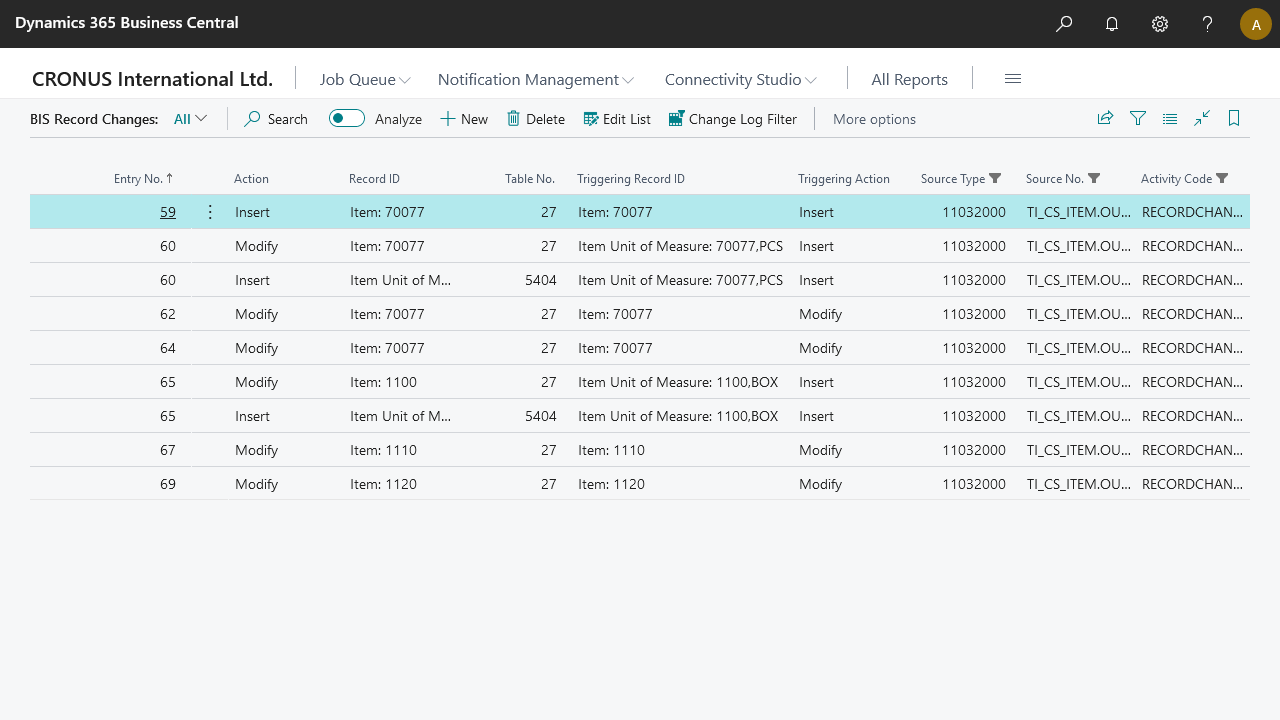
Before changes are processed by the Record Change Event, the system collects and stores the changes in the N108 Record Set and N108 Record Set Member tables. You can quickly view the entries from the Record Change Event element by selecting Navigate > Details from the ribbon.
After the Record Change Event runs, processed entries are deleted.
Change log filter
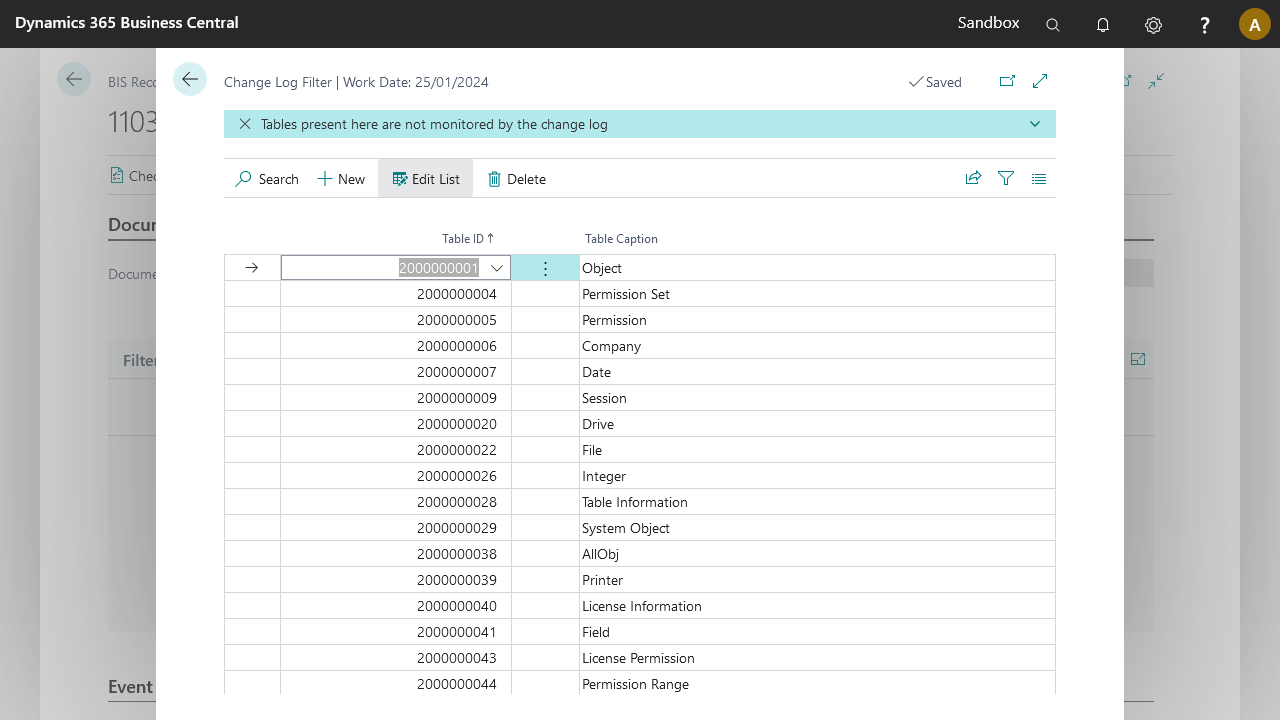
The change log filter was introduced to avoid monitoring inaccessible tables. Tables defined here are automatically excluded from the Record Change Event, even when defined in the monitoring document. When you install the app, it automatically adds all system tables to exclude from monitoring.
Optional setup
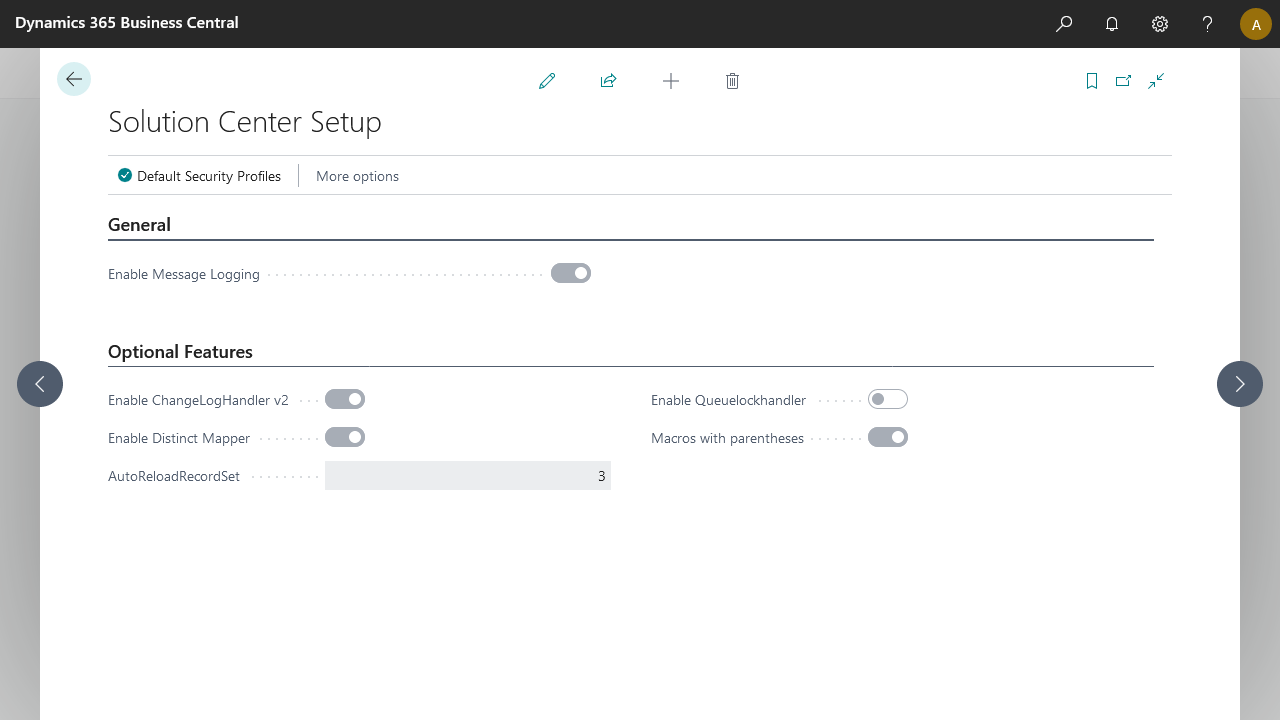
 Solution Center Setup is only available in search via "Solution Center Setup".
Changeloghandler v2
The Enable Change Log Handler V2 setting addresses performance issues. The record change event code is updated and you can enable this feature in Solution Center Setup. When enabled, record changes are logged via the new handler, which improves performance. This feature will become a standard feature in the future.
AutoReloadRecordset
Record changes can sometimes be processed before the transaction that captured the event has completed. This can result in the following error message:
The related recordset for this message could not be retrieved. Please retry.
To avoid this, a global retry option retries retrieving the recordset before triggering this error. Initially, this sets three attempts with an increasing delay between attempts. You can modify this setting between 1 and 9 load attempts.
Recommendations
Limit to one table. Every table included in the internal document is monitored. This affects performance. Include only one table for monitoring.
Specify fields. Specify the fields that require monitoring. Minimize the number of fields when using Modify in the event setup. This minimizes the number of entries in the change log and reduces activity on the change log functionality.
Use a "trigger" document. Create two internal documents. Use the first internal document for triggering/monitoring. Use the second with a multi-table model including relations and filters. Make sure both documents contain the same root element (for example, the Customer table). The Record ID passes through the pipeline in the message to communicate between the two documents.
If a different table appears in the root element of the second document, there is no reference to the changed record. Only filters can then limit the number of records processed.
Be aware of the combination of Log changes incrementally and Process changes separately. Process changes separately creates a separate message for each record set member. If several tables are monitored, this creates messages with different records and possibly different tables. A warning appears when the configuration check detects this configuration.
Be aware of subscribers that handle records monitored by Record Change Events. Subscribers that hook into record triggers can change the values of certain fields monitored by your Record Change Events. If this happens, the record change details logging fails with the following error: "A Subscriber changed field values during an Insert(false) on table 'TableName', this conflicts with configuration in 'BIS Product':'BIS Connection'. Please contact your partner."